Can't login to SplashID Safe 8.4.x Web app in WiFi Sync/No Sync modes
If you use our SplashID Safe 8.x apps in Cloud Sync mode, you can also use our Web app to view and edit your SplashID Safe data from any PC/Mac/Linux/Chromebook/etc computer with Internet access, using the same SplashID Safe password you use for the mobile device/Desktop apps. Note: Web app is here: https://splashid.com/login
However, if you are using No Sync or WiFi Sync mode you should not try to login to Web app as it is disabled in those two Sync modes - this is normal and by design.
Also, trying to login to Web app 10 times will lock your account and may delete all your data (except if you use Cloud Sync mode - then no data is deleted, the account is just locked).
If you are trying to login to your SplashID Safe account on our website, please note no such general SplashID Safe account service exists on our website currently - only the Web app, which has the limits above.
NOTE: To check which SplashID Safe Sync mode you use for your account currently, in Desktop app please go to Preferences (Mac)/Settings (PC) --> Account Settings section. In mobile device apps, go to SplashID Safe mobile device app Settings --> Account status & sync method (for iOS/iPadOS app)/Account Info (for Android app).
NOTE #2: If you are trying to login to our website in order to (re)download SplashID Safe software, then please note no such login is necessary - all our software is freely available on our website directly, without any logging in - HERE. The mobile apps are available for download in the respective App Store, such as App Store for Apple iOS/iPadOS devices, and Google Play Store for Android phones/tablets.
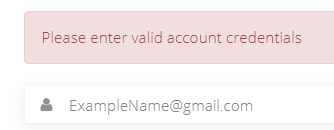
NOTE #3: If you are using Cloud Sync and are entering your password correctly into Web app Login screen yet Web app rejects the login, then you may be entering your email ID as First letter Uppercase, OR in MixEd Case. Make sure to enter email ID as all lowercase into Web app email ID box and then login to Web app should work fine.
Example of wrongly entered email ID -->
Also, trying to login to Web app 10 times will lock your account and may delete all your data (except if you use Cloud Sync mode - then no data is deleted, the account is just locked).
If you are trying to login to your SplashID Safe account on our website, please note no such general SplashID Safe account service exists on our website currently - only the Web app, which has the limits above.
NOTE: To check which SplashID Safe Sync mode you use for your account currently, in Desktop app please go to Preferences (Mac)/Settings (PC) --> Account Settings section. In mobile device apps, go to SplashID Safe mobile device app Settings --> Account status & sync method (for iOS/iPadOS app)/Account Info (for Android app).
NOTE #2: If you are trying to login to our website in order to (re)download SplashID Safe software, then please note no such login is necessary - all our software is freely available on our website directly, without any logging in - HERE. The mobile apps are available for download in the respective App Store, such as App Store for Apple iOS/iPadOS devices, and Google Play Store for Android phones/tablets.
NOTE #3: If you are using Cloud Sync and are entering your password correctly into Web app Login screen yet Web app rejects the login, then you may be entering your email ID as First letter Uppercase, OR in MixEd Case. Make sure to enter email ID as all lowercase into Web app email ID box and then login to Web app should work fine.
Example of wrongly entered email ID -->
Example of correct way to enter email ID -->
If your account is set to use Cloud Sync, and you entered your email ID as all lowercase but still can not login to Web app or if you have any other issues with or questions about the SplashID Safe apps, please ask us for help by submitting a support request HERE or email us to one of our Contact Email addresses by department and our team will assist you ASAP.